
Mac Onboarding
Documentation
Choose your setup path. Whether you are provisioning a brand new machine out of the box, or migrating an existing device from the Visma tenant, we have you covered.
New Mac Setup
Official configuration protocol for deploying brand new hardware directly into the Norvato Intune Tenant using the MacTuner tool.
Visma Migration
Step-by-step instructions for unbinding an existing device from the Visma MDM and securely migrating it to Norvato without data loss.
Setup Guide
Official configuration protocol for deploying brand new Norvato Mac hardware.
Prerequisites
Important: Ensure you have a valid Intune license and Local Admin rights before starting.
checklist System Requirements
account_tree Installation Flow
2. Launch Installer
Double-click the package. You will be prompted for your local account credentials.
3. Start MacTuner
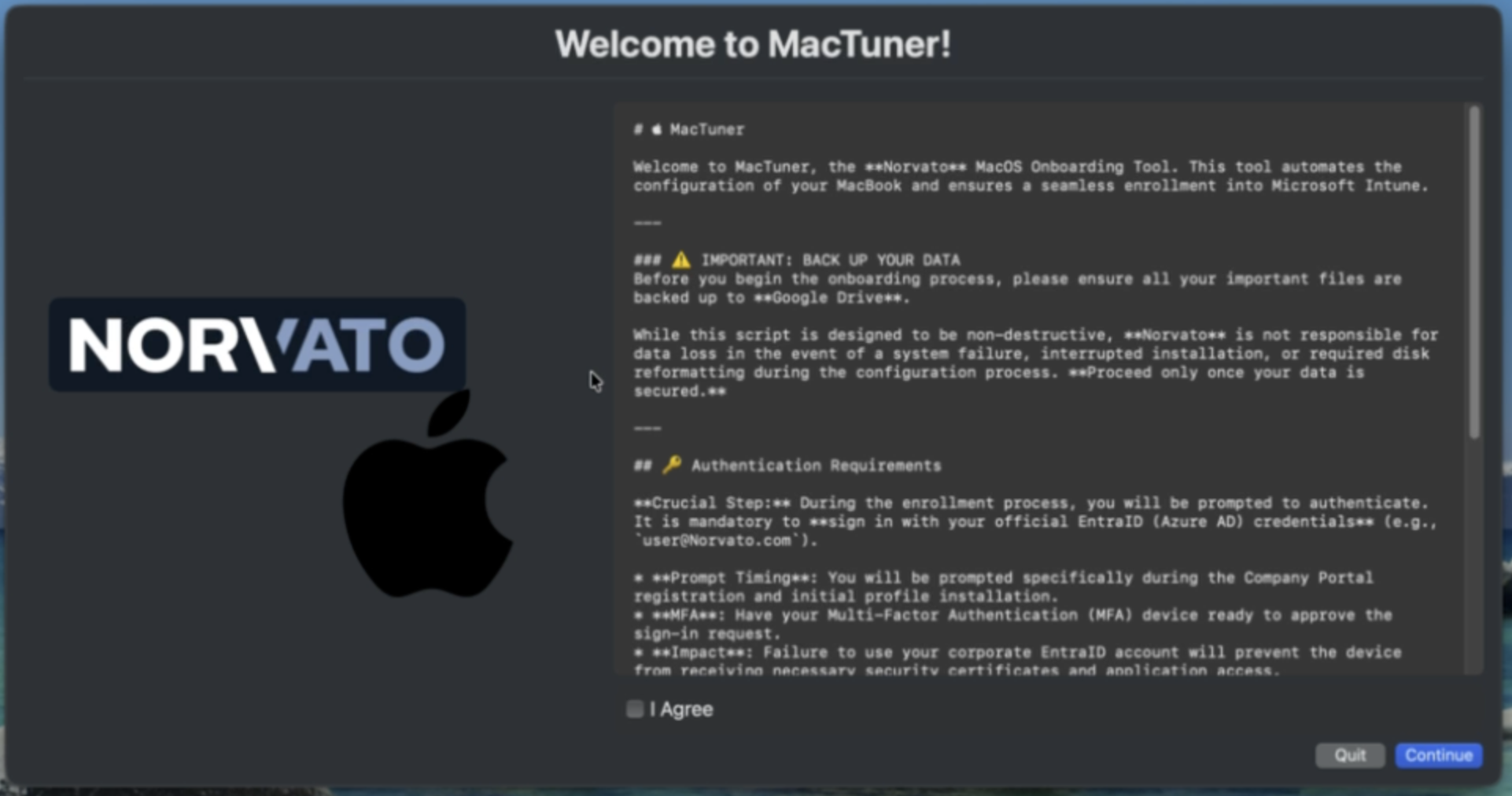
A 'MacTuner' shortcut is automatically added to your /Applications folder for easy access. Once executed, the user ends up with an initial menu and needs to go through the wizard steps.
4. Configuration Scripts
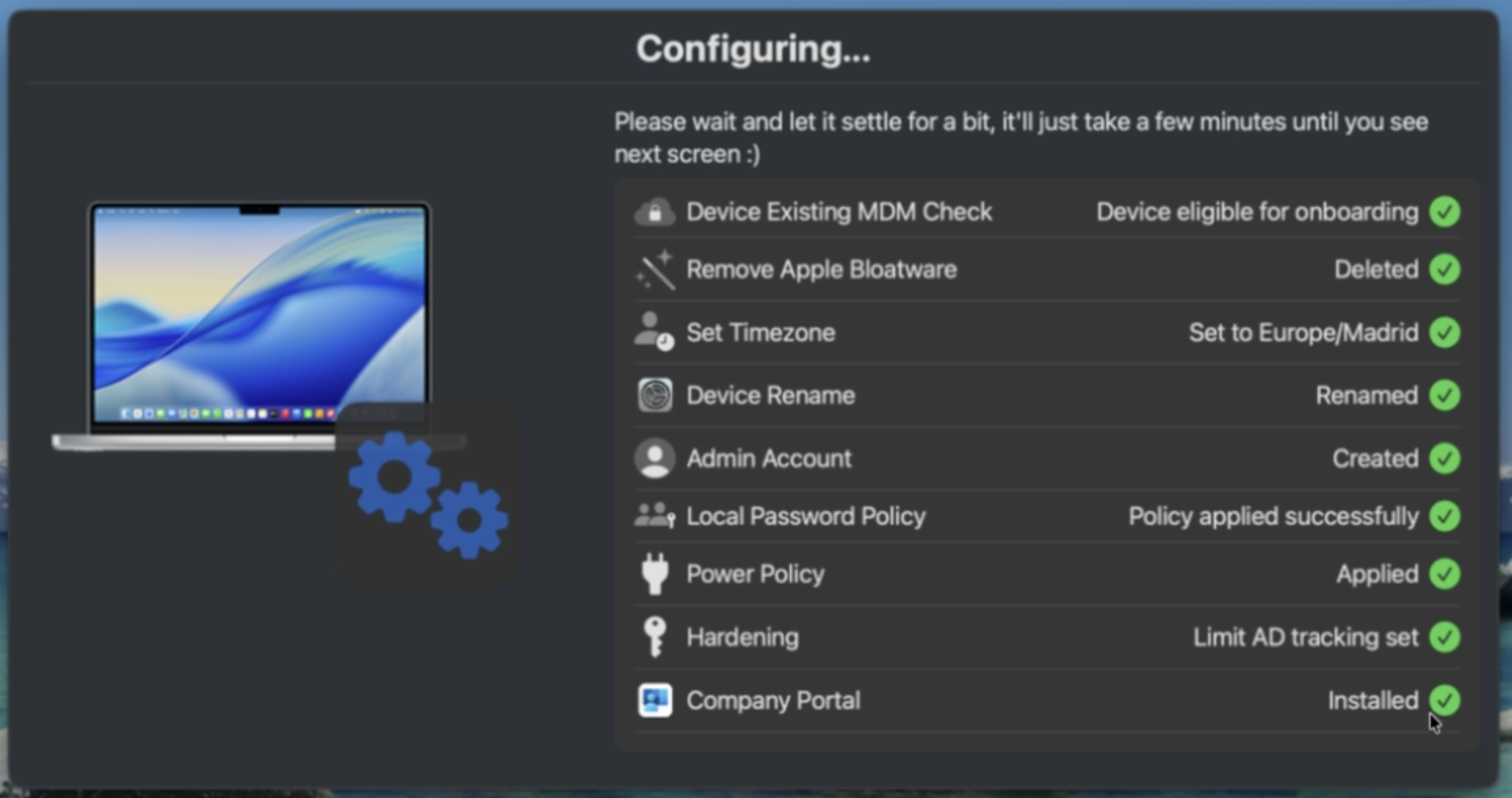
MacTuner configures your computer by running several scripts in the background streamlining your configuration.
5. Company Portal
Automatic deployment of Microsoft Company Portal for managed software updates and corporate apps installation.
6. Enrollment
Sign in with your @norvato.com credentials when prompted by Company Portal to complete Intune onboarding.
Still have doubts? You can find an explanatory video walkthrough directly inside the tool's Help function to guide you through every step.
Migration Guide
Official unbinding and enrollment protocol for existing devices moving from Visma to Norvato.
Beforehand
Critical Precautions
This migration between tenants concept is not something fully promoted by Microsoft; they prefer going the wiping route. Be aware it's not 100% failure-proof. Here are a few things you MUST pay attention to before attempting:
- Backups: It is CRUCIAL for you to keep a copy of your important data if something goes really wrong. We encourage using Norvato Google Drive for such task.
- FileVault: FileVault encryption remains enabled during migration.
However,
before starting, it is really important for you to keep a copy of your FileVault
Recovery
Key. This key is retrievable inside the Company Portal App, at the very bottom of the
main
window. PLEASE CHECK YOU HAVE IT BEFORE EVEN STARTING MIGRATION. This key might be gone
after migration until your device syncs it with Norvato.
PS: You can also retrieve the key via your device properties in this Portal, signed in with your Visma.com credentials. - Power Connection: Keep your MacBook connected to a power source throughout the process. Just in case.
Installation Guide
Install from Company Portal
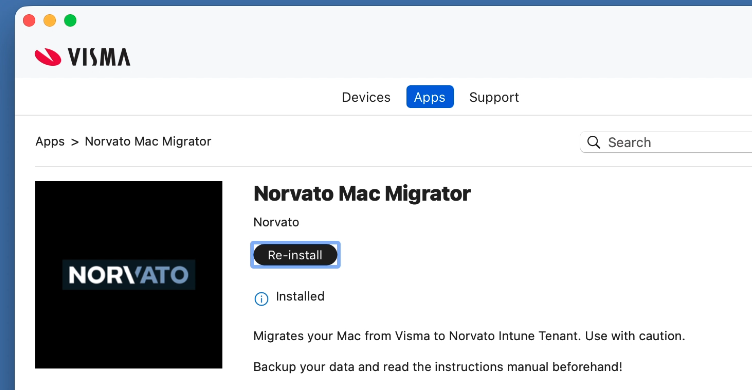
Open the Company Portal app. Search for "Norvato Mac Migrator", and click Install. The application will be added to your Applications folder after a few seconds.
Start the Tool
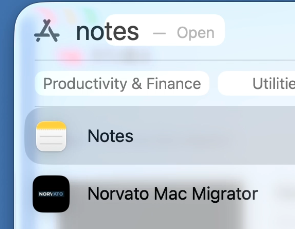
Launch Norvato Mac Migrator from your Applications menu. Follow the on-screen wizard.
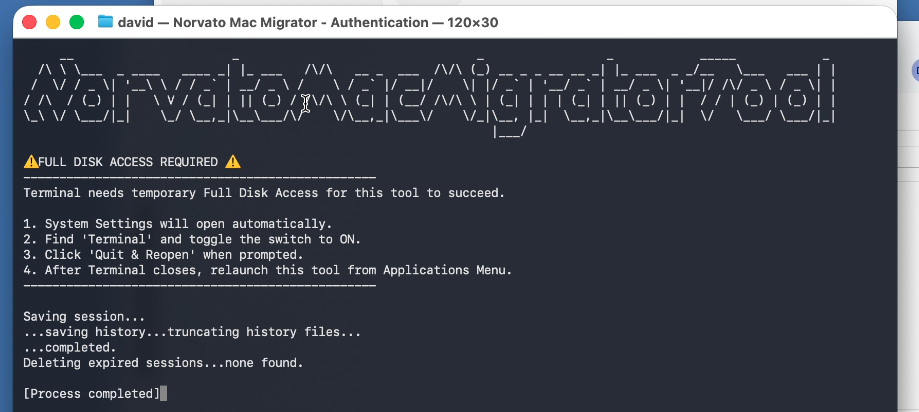
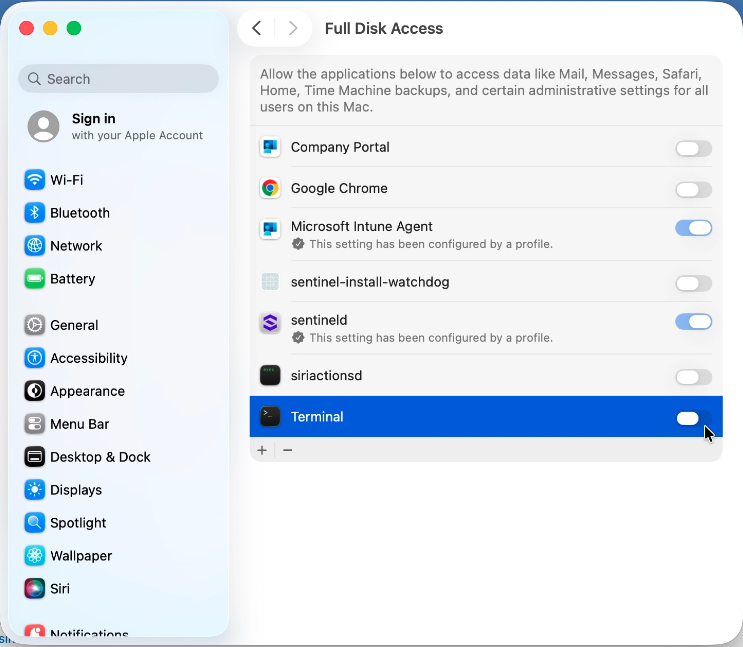
The tool launches a Terminal window which needs Full Disk Access rights in order to work. Right after a few seconds, a popup window with a toggle for granting such permissions to Terminal appears. These extra rights will be revoked as soon as the tool finishes.
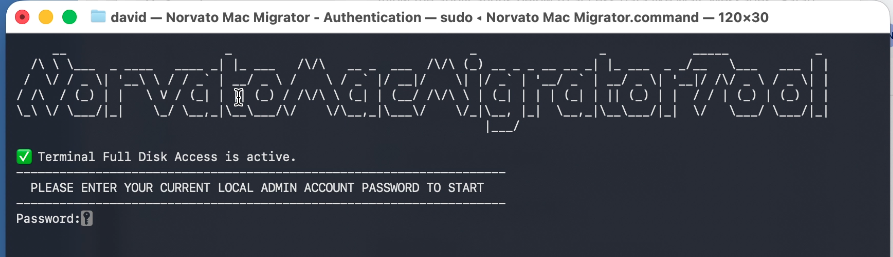
Relaunch the tool again so you see it like this.
Unbind from Visma Intune
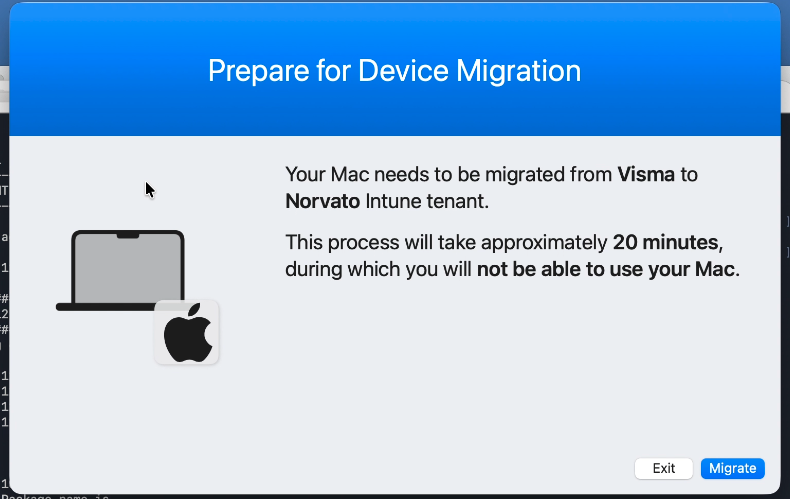
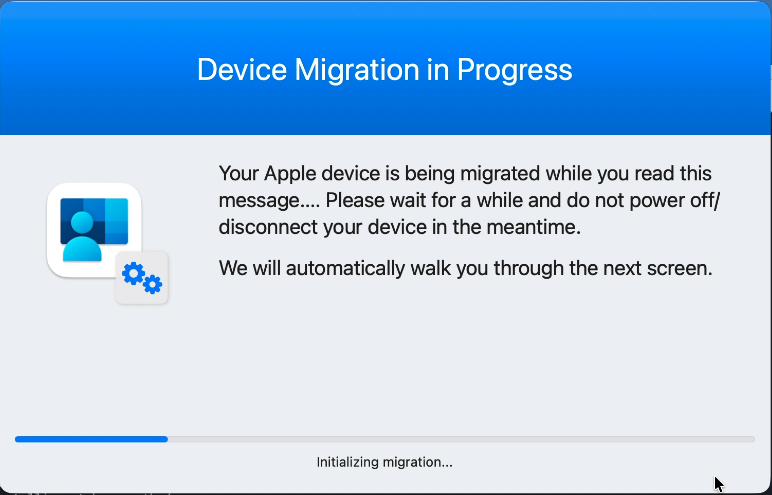
Hit the Migrate button. Unbinding from the Visma Intune Tenant starts in the background.
Onboarding In Norvato Intune
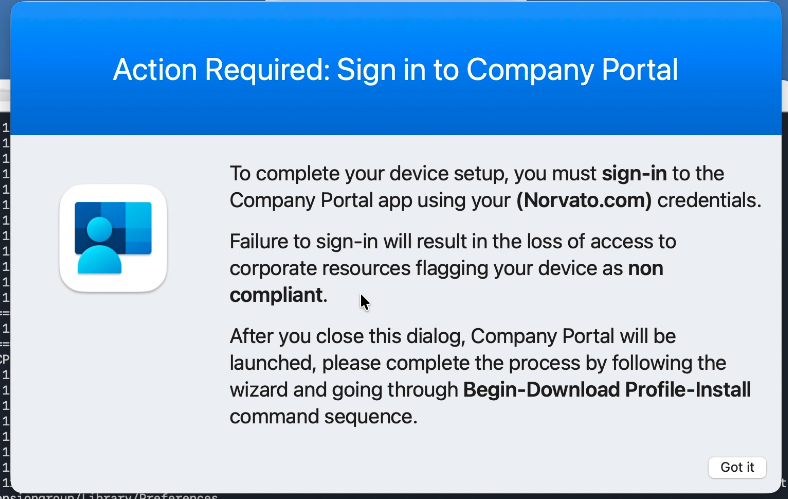
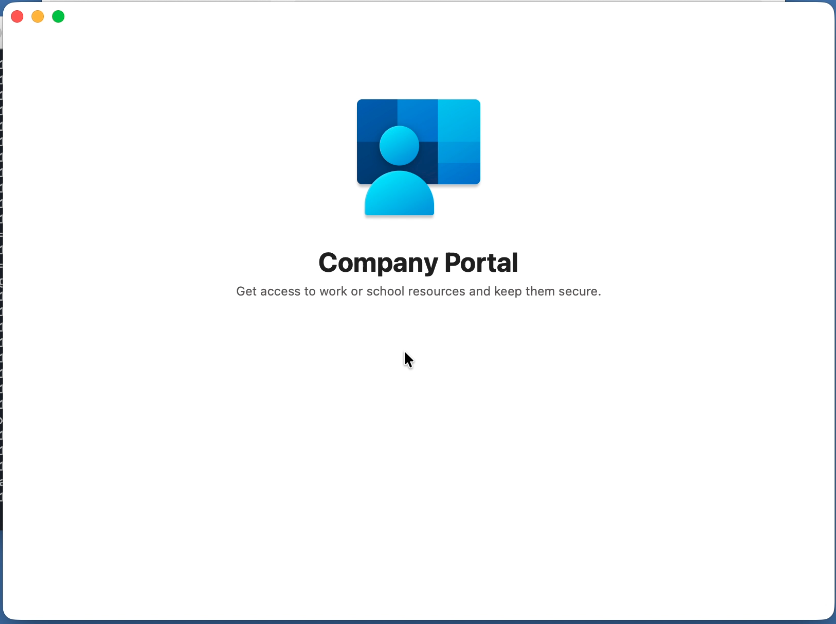
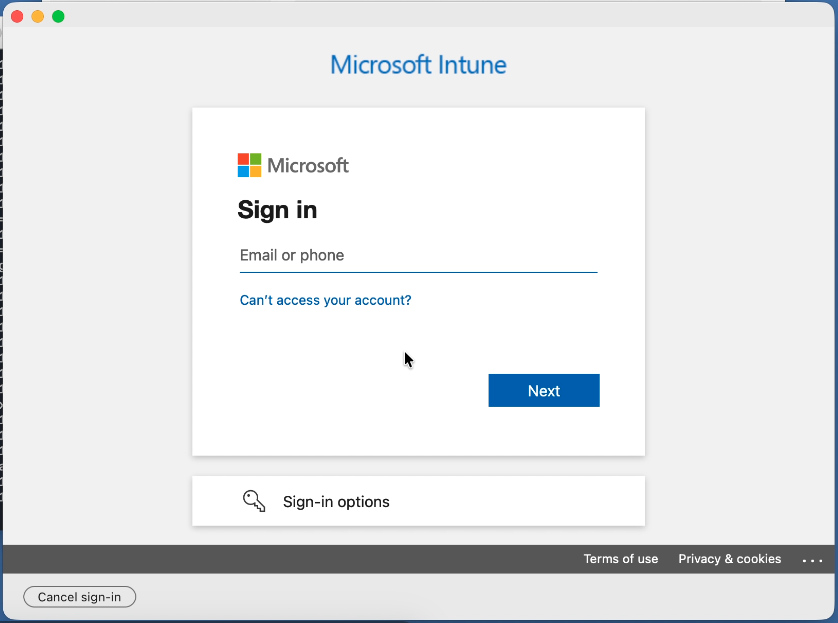
Once the Visma MDM profile is gone, Company Portal will be automatically launched for you to sign in with your Norvato.com credentials.
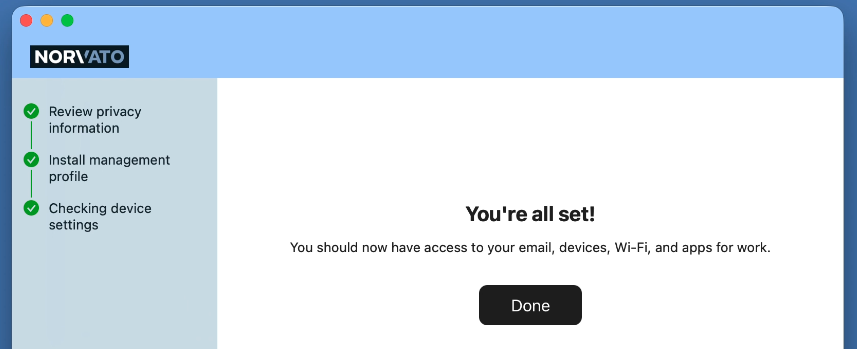
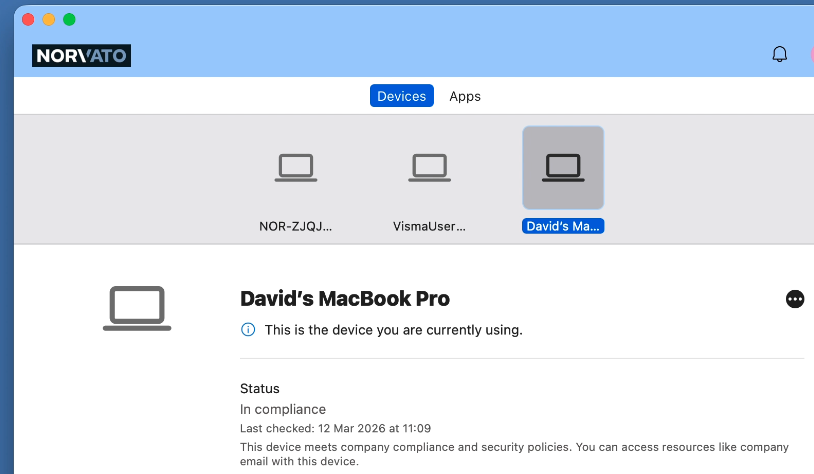
Migration is finished
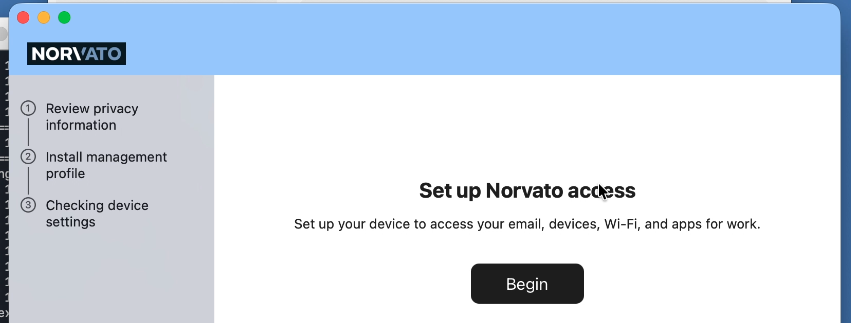
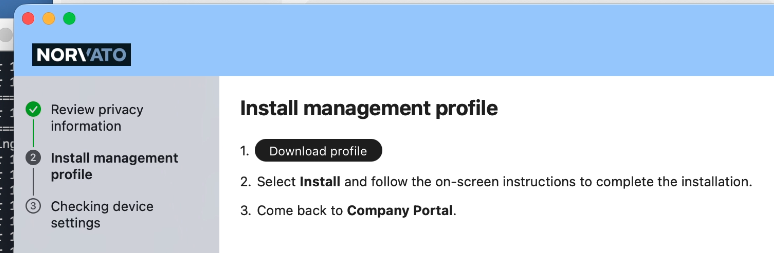
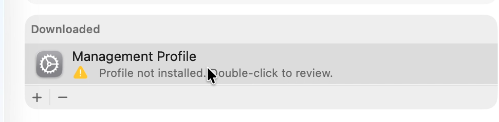
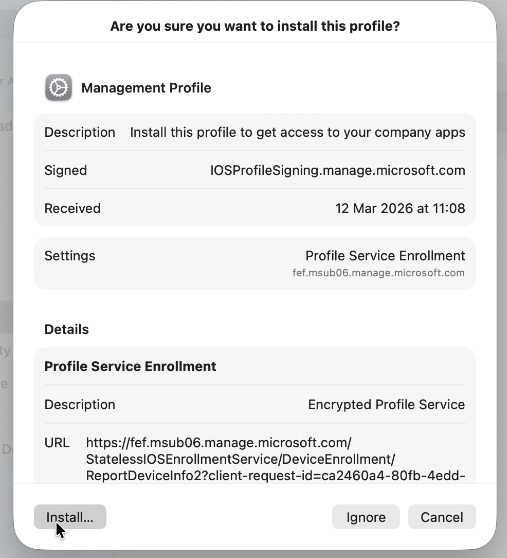
After a successful login, Company Portal will ask you to install the new Norvato management profile. Please do so to ensure your Apple device configuration is streamlined by Norvato.
Optional: Send ticket to Visma Service Desk
After migration, if your device was ADE enrolled (aka Apple Business Manager), your Apple device still remains bonded to Visma. Find the shortcut in your desktop we created for you and submit a formal request for removal.
Known Errors
ERROR: Your device cannot be migrated
After a first attempt to migrate your Mac with the tool you end up with a banner message
stating ERROR: Your device cannot be migrated.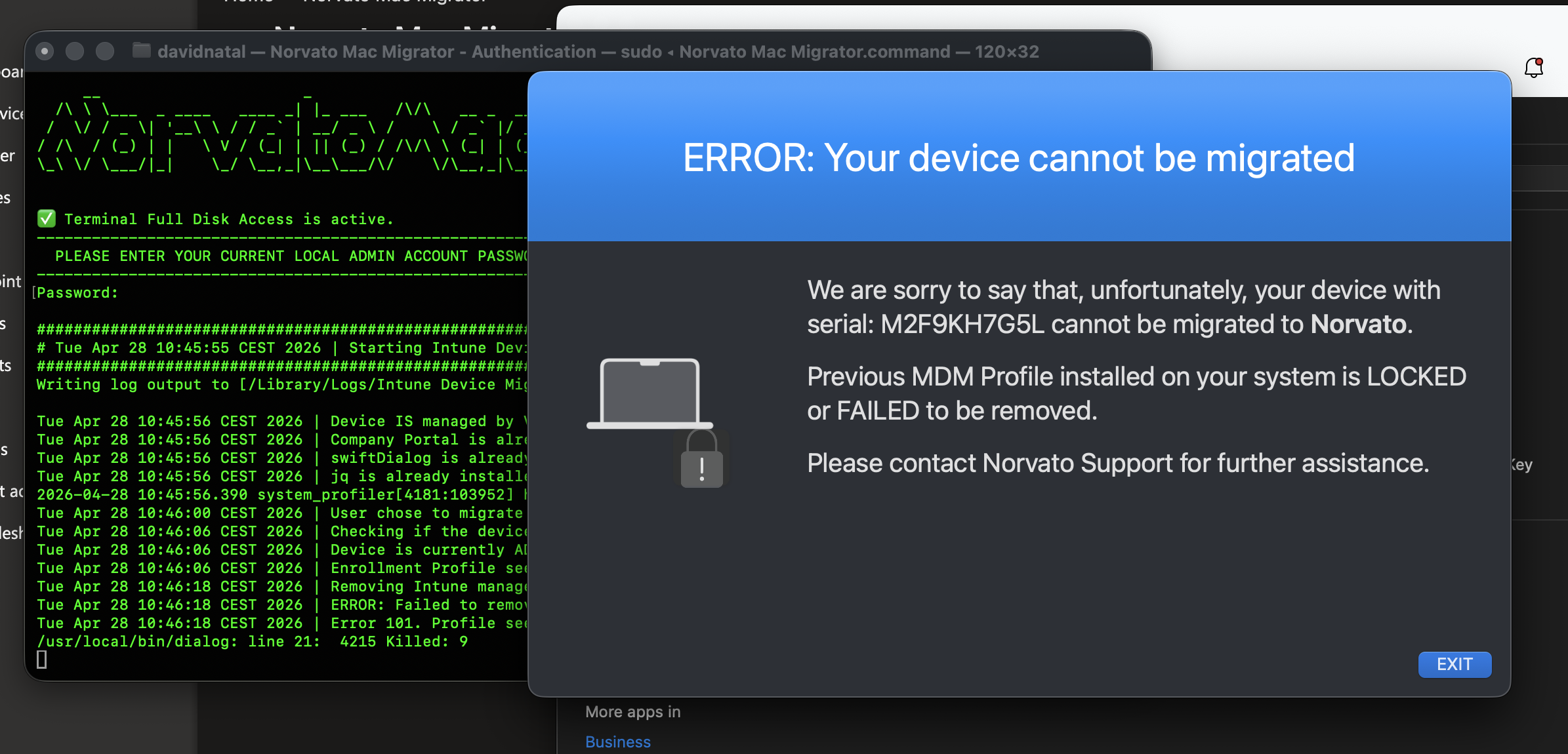
Most likely, current MDM profile installed on MacOS is locked, meaning it cannot be
removed as it has some protection. If this locked profile belongs to Visma or other
organization, only some administrator from this organization is able to remove it.
In
addition, if your MacOS device was ADE enrolled in Visma, it is supposed MDM profile
installed does NOT have this lock in place however, it is possible that it failed to
remove because there is no bond with ABM anymore(just keeps Intune's). For this
scenario, please contact Norvato Endpoint team so we can run a retire
action from Visma Intune tenant on behalf you. After the retire finishes, please
re-login with Company Portal with your Norvato credentials and onboard device in Intune
manually. Just a few considerations here:
Please note Visma credentials might be cached and Company Portal offers you to
register device in Visma again. Obviously, please hit POSTPONE
button.
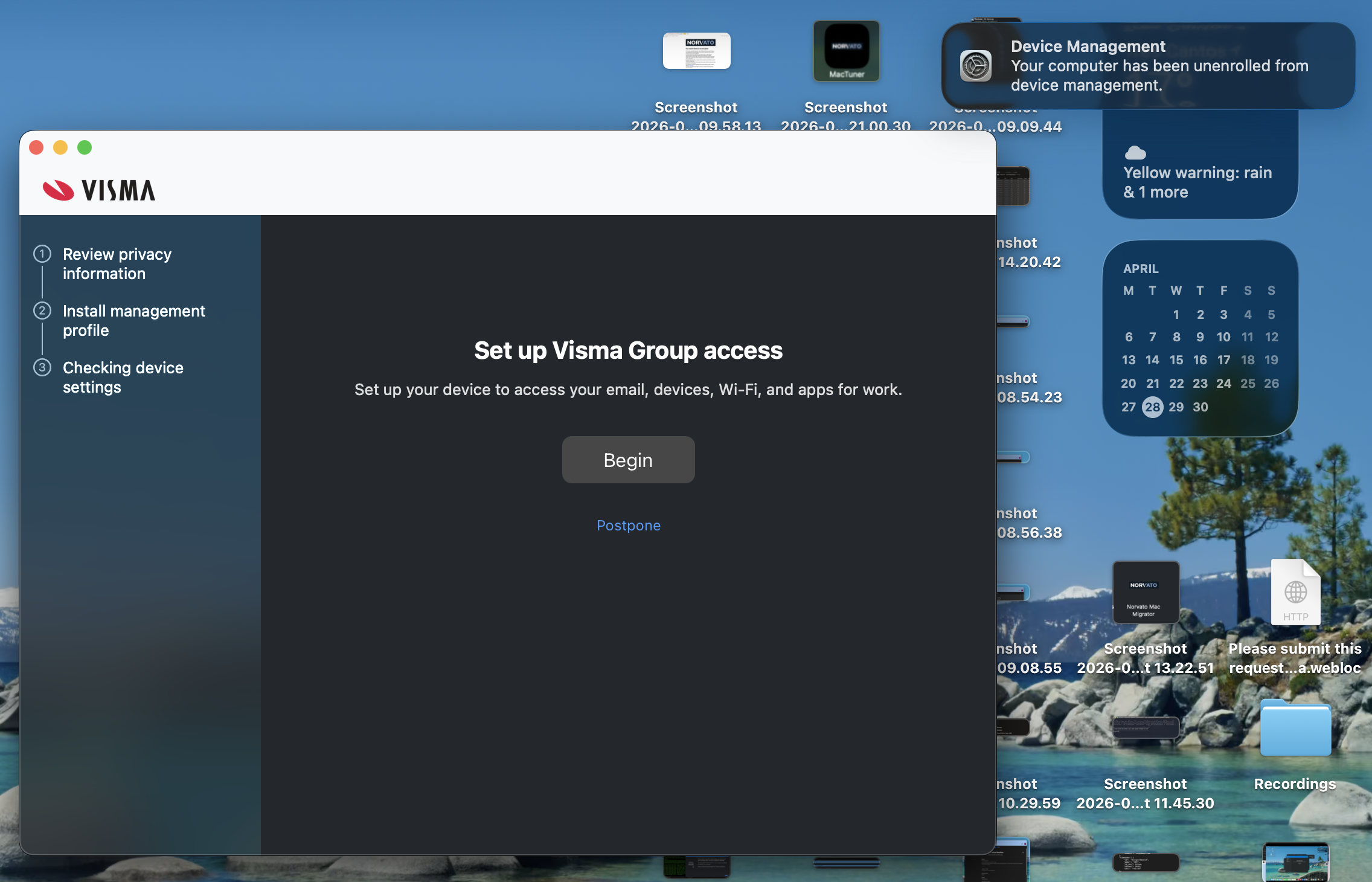
After postponing, click on your user avatar inside Company Portal and
sign-out.
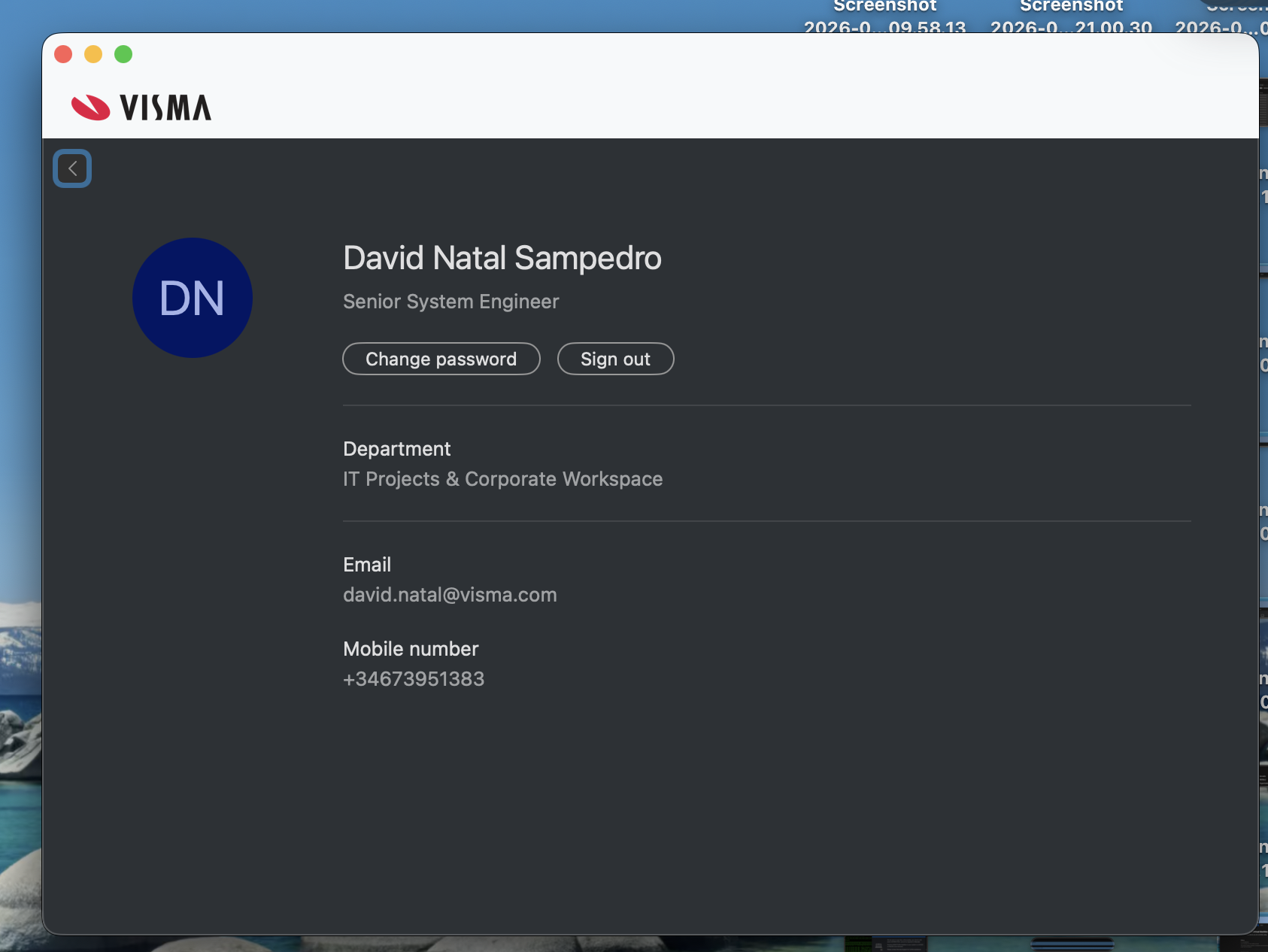
Now, please sign-in again with your Norvato credentials in Company Portal and onboard device in Norvato Intune manually by following the wizard steps.