Manually onboard your Windows 11 PC
Full Device Wipe & Local Reinstall guide with offline Norvato Intune onboarding
This guide will walk you through all steps needed for resetting your Windows 11 computer, ready for Norvato onboarding. This process will remove all personal files, apps, and settings, returning the computer to a clean state using the Windows binaries already stored on your device.
Backup your data. This process is irreversible and will erase everything on the main drive. Ensure your laptop is plugged into a power source before beginning, as losing power during a reset can corrupt the operating system.
BEFORE RESET: Offline Intune Onboarding
Before perfoming a reset, your current device hardware hash needs to be collected and uploaded
to Norvato Intune.
For the time being needs to be performed by hand, being this method aka
Offline device registration with Windows Autopilot.
Install-Script -Name Get-WindowsAutopilotInfo
Set-ExecutionPolicy -ExecutionPolicy RemoteSigned
Get-WindowsAutopilotInfo -GroupTag "DFA" -OutputFile C:\nor-$($env:COMPUTERNAME).csv
Please note:
You can ajust the -GroupTag
parameter value (in this case DFA) to your matching Company's NOM Fixed ID (e.g.
NOR013).
After completion,
output file in C:\ MUST
be sent to Norvato IT support for Intune tenant uploading
.
This normally requires a few minutes, please wait for the green light.
RESET PROCEDURE
Step 1: Open Windows Settings
Did the previous hardware hash uploading succeed? Please continue only if you are sure.
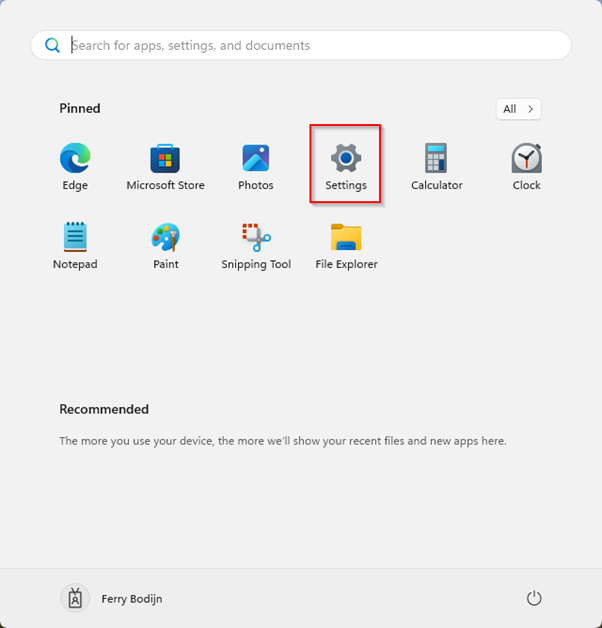
- Click the button on your taskbar.
- Click on the Settings icon. (Alternatively, you can make use of the
Windows + ikey combo).
Step 2: Navigate to Recovery Options
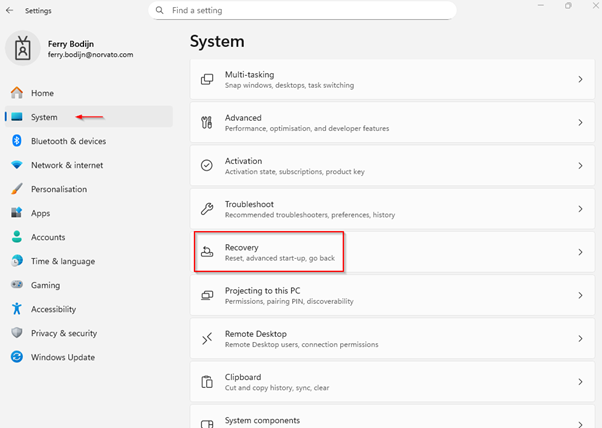
- In the Settings window, ensure System is selected on the left-hand menu.
- Scroll down on the right side and click on Recovery.
Step 3: Initiate the Reset
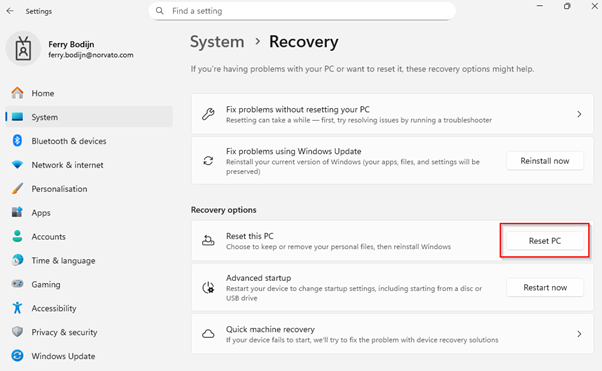
- Under the "Recovery options" section, locate the Reset this PC option.
- Click the Reset PC button next to it.
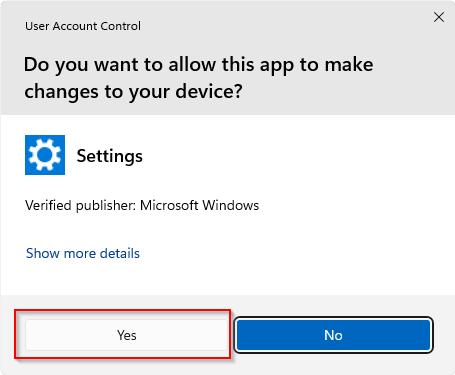
Step 4: Select "Yes"
A window ‘User Account Control’ will pop up, asking to allow this app to make changes to your device.
- Click on ‘Yes’.
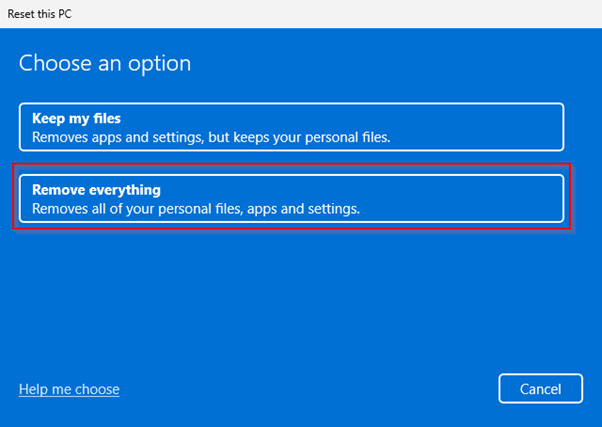
Step 5: Select "Remove Everything"
A blue window will pop up asking you to choose the option ‘Remove Everything’.
- Click on Remove everything. This ensures all personal files, apps, and accounts are completely wiped from the device.
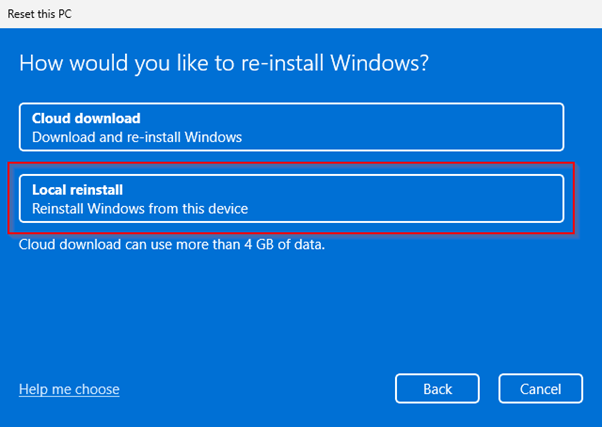
Step 6: Select "Local Reinstall"
The next screen will ask how you want to reinstall Windows.
- Click on Local reinstall. This will reinstall Windows using the existing files on your computer, saving you from having to download gigabytes of data from the internet.
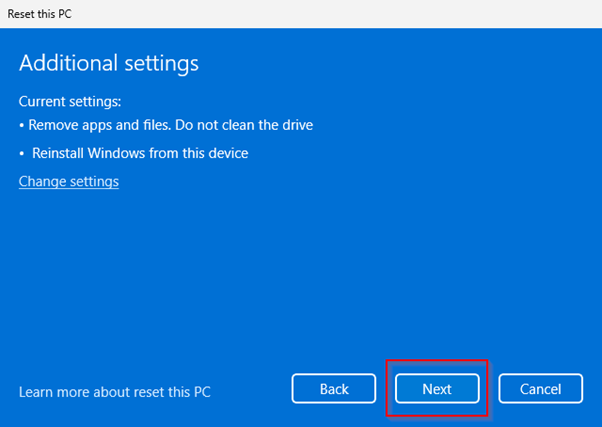
Step 7: Confirm Additional Settings
- You will see a summary screen titled "Additional settings" confirming your choices (Remove apps and files, reinstall from this device).
- Click Next at the bottom right.
Step 8: Start the Reset Process
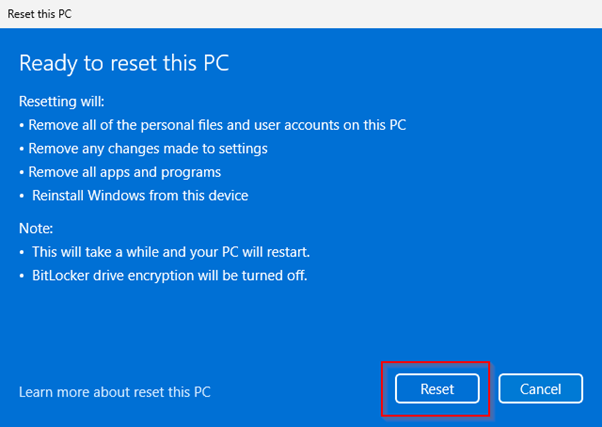
- The final screen, titled "Ready to reset this PC", will outline exactly what is about to happen.
- When you are absolutely ready, click the Reset button.